
You can type using voice on Chromebook in two ways. Firstly, use the system-wide speak-to-type feature, and secondly, use the voice typing on the on-screen keyboard. Let’s dive into both methods.
You will need to enable the Dictation feature in Chromebook accessibility settings before you can start using this method.
Note: This method works on both touch and non-touchscreen devices.
Here are the steps in detail:
1. Click on time at the bottom-right corner to open Quick Panel. From the Quick Panel, click on the Settings icon to open Chromebook Settings.
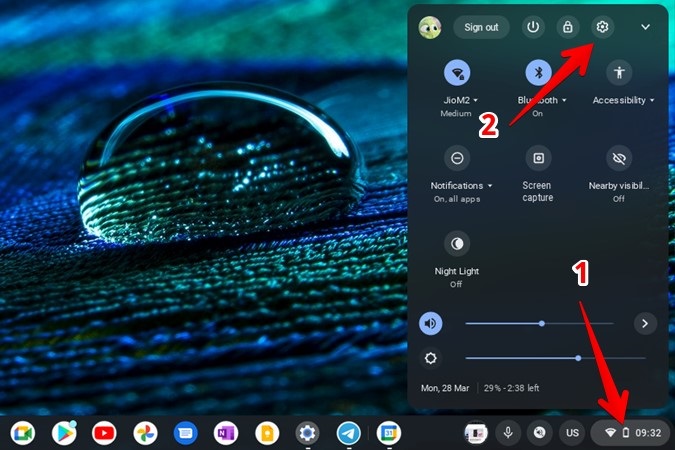
2. Expand the Advanced section from the left sidebar and click on Accessibility.
3. Go to Manage accessibility features from the right panel.

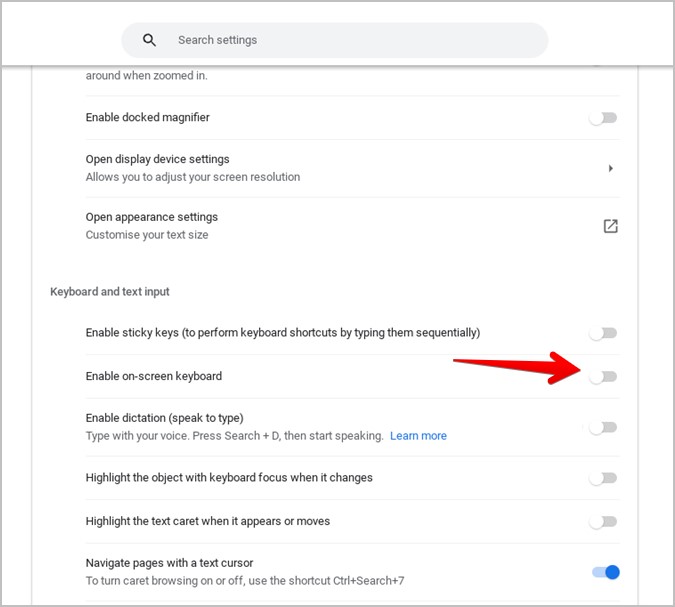
4. Scroll down to the Keyboard and text input section. Turn on the toggle next to Enable dictation (speak to type).

5. Click on the Change button next to the Language option under Dictation to choose a language for voice typing.

6. As soon as you enable the dictation toggle in step 4, a microphone icon will appear on the Chromebook’s Shelf aka Taskbar. Click on this icon whenever you want to start typing using your voice. Or, use the Search + D (or Launcher key + D) keyboard shortcut to activate the voice typing feature without clicking on the microphone icon in the taskbar.
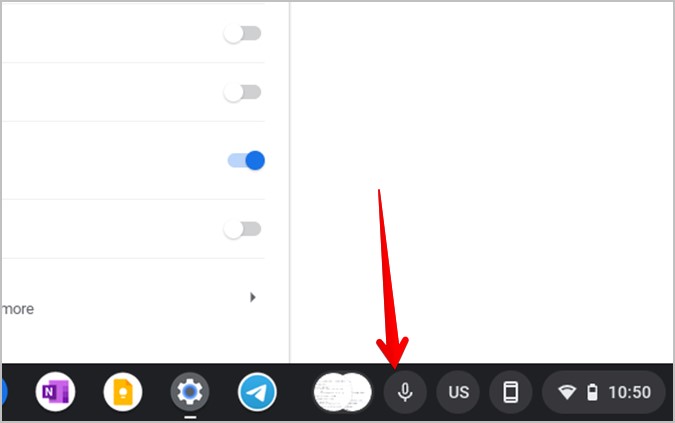
Let’s say, for instance, you want to search in Chromebook settings using your voice. Place the mouse cursor in the settings search box. Then, click on the microphone icon on the Chromebook’s shelf and start speaking. Whatever you speak will automatically be converted into typed text.
Dictation will end automatically if you stop talking. In addition to that, Chromebook will stop listening if it meets one of the two conditions:
The voice typing feature is also available on the Chromebook’s on-screen keyboard. It comes in handy on touchscreen devices where you don’t need to rely on the keyboard shortcut or Chromebook’s shelf to activate voice typing. You can start using it directly without enabling any option. Here are the steps for the same:
1. Open the on-screen keyboard on your Chromebook. You might need to enable it first by going to Chromebook Settings > Advanced > Accessibility > Manage accessibility features > Enable on-screen keyboard.
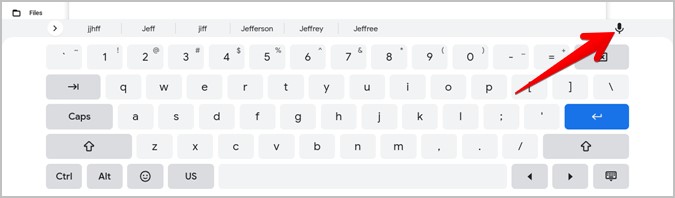
2. When the on-screen keyboard shows up, click on the Microphone icon on it and start speaking whatever you want to type.
When you type using voice, say the following commands to perform text editing operations like copy-paste text, delete text, select, undo, etc.
If you don’t want to use the dictation feature, you can disable it by going to Chromebook Settings > Advanced > Accessibility > Manage accessibility features. Turn off the toggle next to Enable dictation (speak to type).

Note: Disabling Dictation in accessibility settings will not turn off voice typing on the on-screen keyboard.
If you still can't find an answer to what you're looking for, or you have a specific question, open a new ticket and we'd be happy to help!
Contact Us